Removing old certificates and profiles
The certificate used to connect your device to the university's secure network (eduroam) expires annually.
Reconnecting to eduroam
When a certificate / profile has expired, it will need to be removed and a new one installed.
Instructions on how to remove old certificates / profiles can be found below for the following devices:
Connection to eduroam sometimes fails as there have been too many attempts in a short space of time. Please wait 30-40 seconds between each attempt.
If you are still unable to connect, try the steps below:
Step 1: Remove eduroam
- Go to "Settings" and select the "Network and Internet" menu.
- Find "eduroam" and long press it
- Now select "Forget" from the options displayed.
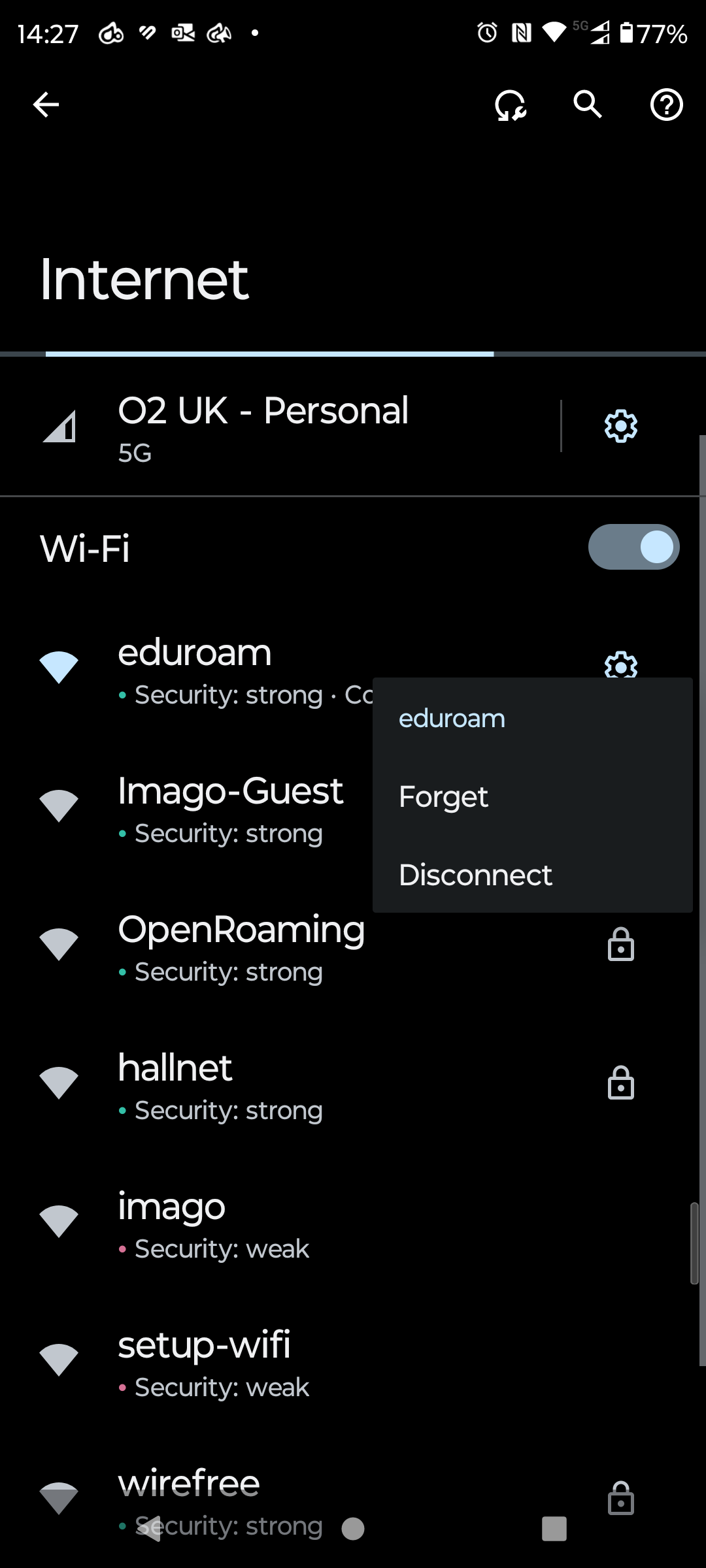
Step 2: Reconnect your device
You can now start the process of reconnecting your Android device using the link below.
Connection to eduroam sometimes fails as there have been too many attempts in a short space of time. Please wait 30-40 seconds between each attempt.
If you are still unable to connect, try the steps below:
This is a two-step process. First, you will need to forget eduroam and then remove the certificate.
Step 1: Remove profile
Now you will need to remove the profile before attempting to rejoin eduroam.
- Go to the 'Settings' menu
- From settings select the 'General' menu
- Now select the 'VPN and Device Management' menu
- Click on the 'eduroam wireless' profile that is located here
- Finally, select 'Remove Profile' and confirm
You can now start the process of reconnecting your iOS device using the link below.
Step 2: Remove eduroam
If eduroam is still connected after deleting the profile
- Go to 'Settings'
- Now go to 'Wi-Fi'
- Click on the the information icon (i) next to eduroam
- Click 'Forget This Network'
- Finally, click 'Forget'.
Connection to eduroam sometimes fails as there have been too many attempts in a short space of time. Please wait 30-40 seconds between each attempt.
If you are still unable to connect, try the steps below:
Step 1: System Settings
To remove the eduroam profile from your MacOS device, click on the Apple logo in the top left hand corner and select 'System Settings'.

Step 2: Device Management
Select 'General' in the side bar, then scroll down to the bottom of 'General' and select 'Device Management'.

Step 3: Profile section
Select the eduroam profile, then click the minus button (-) below it.

Step 4: Delete eduroam profile
Finally, click 'Remove'.
You may be prompted for your device's username and password at this point.
You can now start the process of reconnecting your device using the link below.

Connection to eduroam sometimes fails as there have been too many attempts in a short space of time. Please wait 30-40 seconds between each attempt.
If you are still unable to connect, try the steps below:
This is a two-step process. First, you will need to forget eduroam and then remove the certificate.
Step 1: Forget network
1. Select the Windows "Start menu" and search for "WiFi Settings"
2. Within Wi-Fi Setting select "Manage known networks"
3. Select "eduroam" and then click on "Forget"
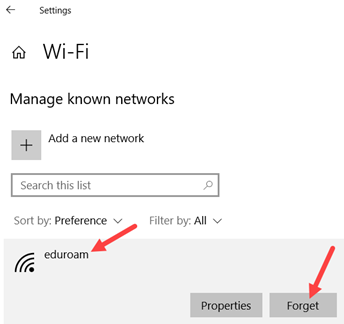
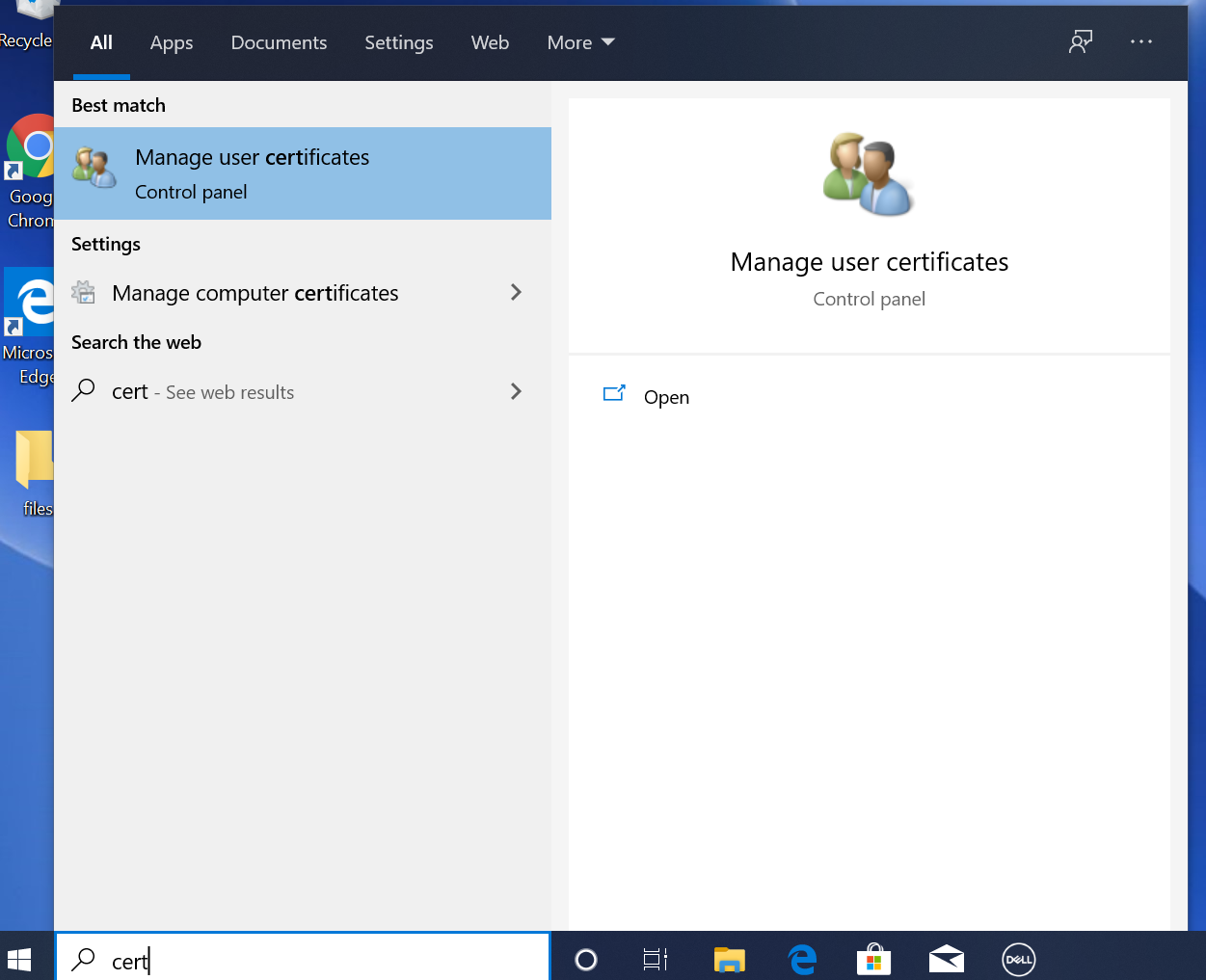
Step 2: Open Manage user certificates
In the search bar type 'Cert' and then open "Manage user certificates" control panel.
Step 3: Find Personal Certificate
Find the personal certificate issued by the 'Loughborough University XpressConnect' Certificate Authority.
This can be found under: Personal > Certificates and will contain your username@lboro.ac.uk. e.g. itis@lboro.ac.uk
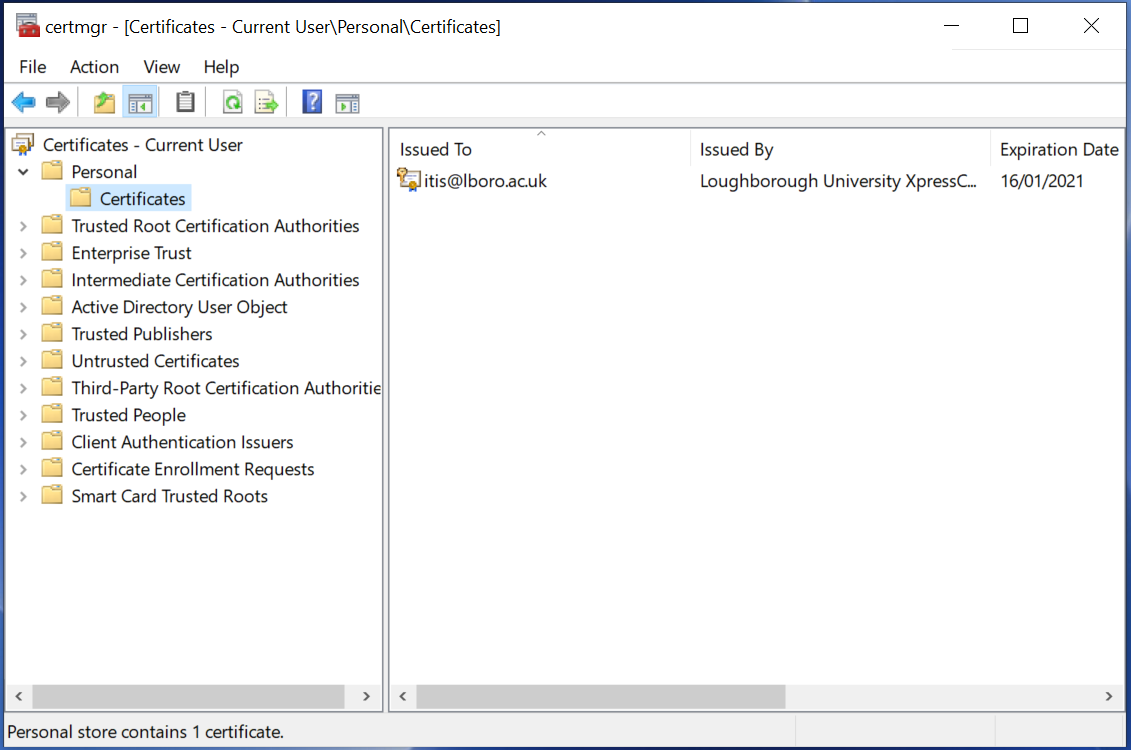
Step 4: Confirm certificate deletion
Right-click on the certificate and click "delete"
If there are multiple certificates with your username, this is due to multiple attempts to connect through this process and will all need deleting.
Click 'Yes' to confirm the deletion of the certificate.
You can now start the process of reconnecting your Windows device using the link below.
Note: Please do not delete any certificates other than the ones that contain username@lboro.ac.uk

Announcements
Most recent
-

PC Clinic - Freshers' week
PC Clinic pop-up desk
-
Mac Staff Desktop - Update to Self Service+ from Tuesday 18th August
Self Service (Classic) is being updated to the new Self Service+ application on the Mac Staff Desktop service.
-
Planned changes to the myLboro mobile app
myLboro will use Single Sign-On (SSO)