Flatbed printing
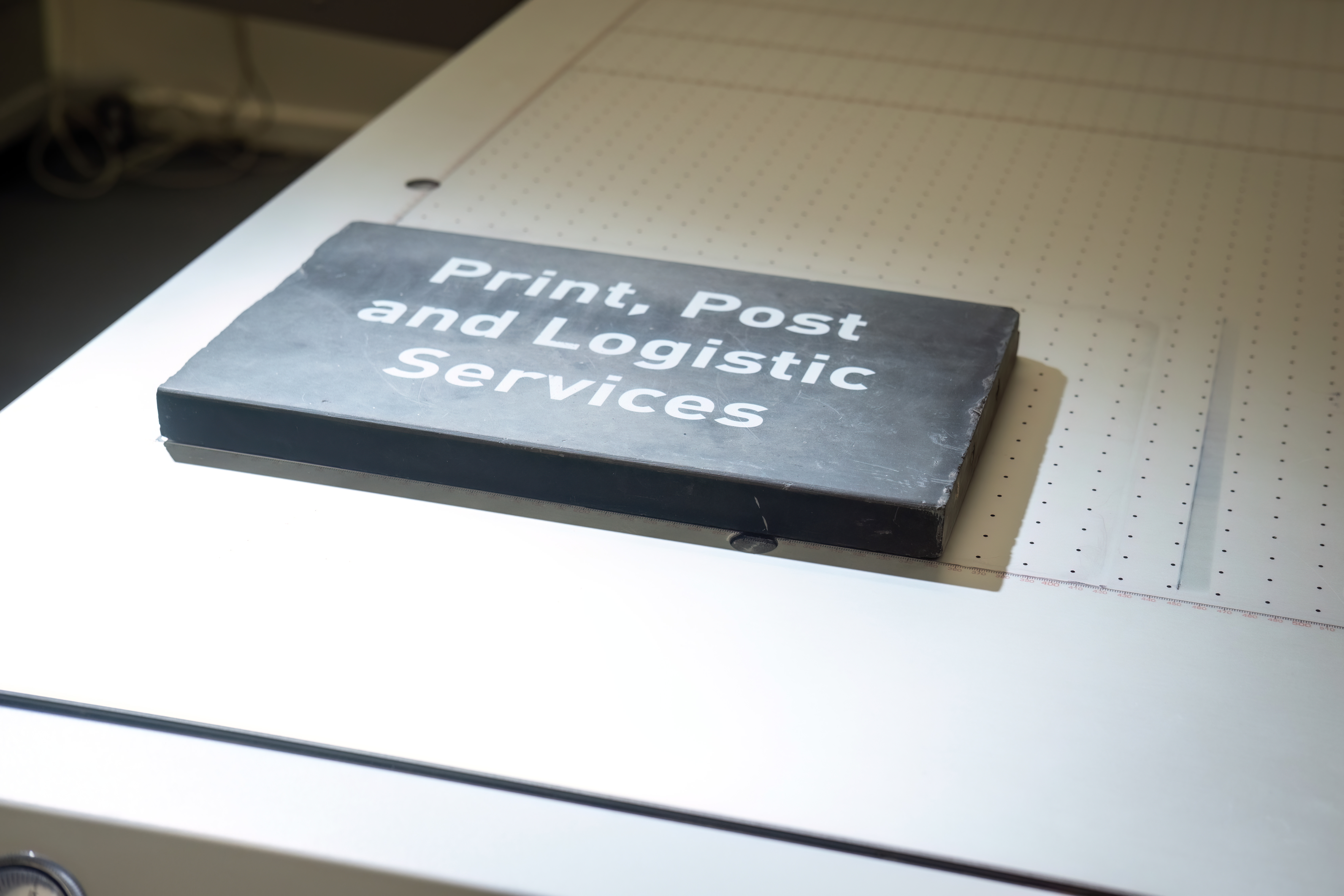
Our Canon Arizona 135 GT is a true flatbed printer with professional quality output on a wide range of materials up to 2,500mm x 1200mm and 20mm thick.
The machine has UV-LED curing technology and a high pressure vacuum system that provides reliable media hold down during printing.
Supported by a roll media option twe can produce durable outdoor banners, rigid signage and print on specialist materials for academic artwork.
This service offers creativity and flexibility that has not been seen in-house before.
Working seamlessly with well-known design packages such as Adobe Illustrator, our VeloBlade Nexus, is here to support you to create your next academic, marketing or communications message in a unique and tangible way.
What products are available to order?
A wide range of products are available through the University Online Shop including posters, creative artwork, display boards, banners and signage.
We have created a wide range of artwork templates that meet university brand guidelines and legal compliance where required.
A mix of fixed content or content that you can type in yourself make these products relevant and adaptable to meet your needs.
All products are set up with the relevant cut file instriuction for our machine to work from.
If the product you need is not there please get in touch and working with our design colleagues we can create just what you need
What turnaround can I expect?
All of our large format printed products have a guaranteed 10 day turnaround in place.
Where possible we complete jobs sooner and will let you know when jobs are aready for collection or delivery through our Parcel Tracker system
Design/Artwork Creation:
New artwork must be created by BDCP to ensure brand compliance.
3 weeks should be allowed for the creation of artwork
My artwork needs a cutfile, how do I do that?
When preparing your artwork for print-and-cut production, it’s essential that your cut line is set up accurately to ensure clean, precise results. Please follow the guidelines below when creating your cut file.
- Create a dedicated cut path around your artwork.
- The cut path must be a spot colour.
- The spot colour must be named CutContour — both “C” letters must be uppercase.
- The cut path should be applied as a stroke/outline only, 0.5 pt in thickness.
- The colour chosen for the CutContour spot colour must NOT be green. We recommend using an orange or another easily identifiable colour that stands out from your artwork.
After creating your artwork and applying the CutContour stroke/outline:
- Save your artwork as a PDF.
- Open the PDF in Adobe Acrobat.
- Go to Tools → Print Production.
- Select Output Preview.
- In the colour breakdown, you should see:
- Cyan (C)
- Magenta (M)
- Yellow (Y)
- Black (K)
- And the spot colour CutContour
If the CutContour spot colour appears correctly in the list, your cut file is set up properly and ready for upload to the Online Shop
Example of sticker artwork with cutfile
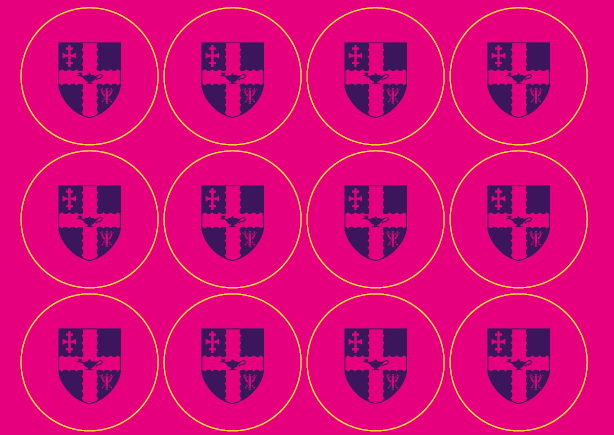
The yellow line depicts the CutContour stroke/outline
Example of colour breakdown showing the CutContour
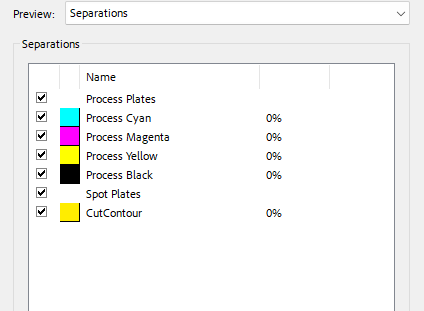
The colour breakdown shows the CMYK elements as well as the CutContour